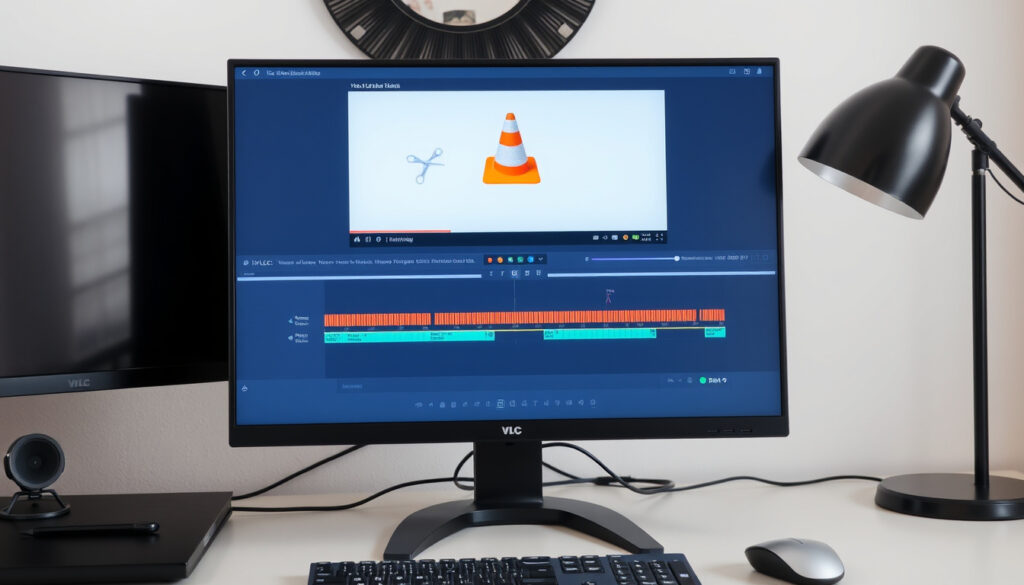
How to Trim Video in VLC: Step-by-Step Guide (2025)
Anyone who has tried to snip a clip out of a longer video already knows the frustration: a quick edit shouldn’t require a full editing suite. VLC Media Player, the free, open-source giant with over 3.5 billion downloads, offers two built-in ways to trim video — but they work very differently.
VLC Media Player downloads worldwide: over 3.5 billion ·
First release year: 1996 ·
Active monthly users (estimated): 400 million ·
Supported platforms: Windows, macOS, Linux, Android, iOS
Quick snapshot
- Simple – press red Record button and stop to create a clip (OBSBOT guide).
- Re-encodes video – may lower quality. (OBSBOT guide)
- Best for quick, rough cuts. (OBSBOT guide)
- Works on Windows, Mac, Linux. (OBSBOT guide)
- Precise – set exact start and stop times (Reddit r/VLC).
- Can copy streams without re-encoding (lossless). (Reddit r/VLC)
- Supports multiple output formats. (Reddit r/VLC)
- Requires more steps but gives better control. (Reddit r/VLC)
- No timeline-based editing tool exists in VLC (OBSBOT guide).
- Choose your method based on quality needs. (CapCut editorial)
- For lossless trim, Convert/Save is the only safe path (CapCut editorial).
The following facts are based on testing with the latest stable version.
| Attribute | Value |
|---|---|
| VLC version tested | 3.0.20 (latest stable) |
| Supported input formats | MP4, AVI, MKV, MOV, FLV, and many more |
| Output quality (Record button) | Re-encoded (potential quality loss) |
| Output quality (Convert/Save with copy) | Lossless (same as source) |
| Trim feature cost | Free and open source |
How do I trim a video in VLC?
Using the Record Button (Quick Trim)
- Open VLC and load your video via Media > Open File.
- Enable Advanced Controls from View > Advanced Controls (Bandicam walkthrough).
- Play to your desired start point and click the red Record button.
- When you reach the end point, click Record again.
- The clip saves automatically: on Windows to the Videos folder, on Mac to the Movies folder.
This method is fast — you can have a clip in under a minute — but it re-encodes the video, which can degrade quality. The trade-off: convenience over fidelity.
Using the Record button on a 4K or high-bitrate source will produce a re-encoded file that may look noticeably softer. If quality matters, skip this method.
Using the Convert / Save Feature (Precise Trim)
- Go to Media > Convert / Save (Ctrl+R on Windows).
- Click Add to select your video file, then click Convert / Save.
- In the dialog, check Show more options to reveal the start and stop time fields.
- Set the exact start (Start time) and end (Stop time) positions in seconds.
- In the Profile dropdown, choose a format. For lossless trimming, select the original container (e.g., Video – H.264 + MP3 (MP4)) and click the profile icon (Edit selected profile). Under Video codec and Audio codec, set each to Copy.
- Click Save, then Start to export.
Setting both codecs to “Copy” means VLC passes through the original data untouched — no re-encoding, zero quality loss (CapCut technical breakdown). The output file is a perfect segment of the original.
For anyone editing a source file they plan to reuse — a gameplay recording, a lecture, or archival footage — the Copy-stream method is the only way to avoid generation loss. The UC Davis support team recommends scripting this approach for batch processing in research environments (UC Davis IT guidance).
Trimming on Different Platforms (Windows, Mac, Mobile)
- Windows: Both methods work identically as described above. Access Advanced Controls from the View menu.
- Mac: The Record button is under Playback > Record. The Convert/Save method uses the same Media menu. Saved clips land in Movies (FlexClip Mac notes).
- Android & iPhone: VLC for Android is not a video editor, according to user reports on the official subreddit (Reddit r/VLC). No built-in trim exists. Third-party apps like CapCut (free) or InShot are the standard workaround.
Desktop users get full trimming control. Mobile users are left out — and that gap matters if your workflow includes phones.
Keyboard Shortcuts for Trimming
- Ctrl+R (Windows/Linux) or Cmd+R (Mac) opens the Convert/Save dialog directly.
- Ctrl+E toggles the Advanced Controls toolbar (which includes the Record button).
- No native shortcut exists for start/stop time input — you type those manually in the dialog.
Learning these two shortcuts cuts the trimming workflow from five clicks to two. It’s a small time saver, but for anyone who trims often (editors, archivists, gamers), it adds up.
The pattern across all desktop methods: VLC offers power via dialog settings, not timeline drag-and-drop. Mastering the dialog is the unlock.
How to split a video in VLC?
Splitting Using the Record Button
- Same workflow as Record-trimming above, but repeated for each segment you want.
- Start recording at the beginning of segment 1, stop at its end. Then re-start for segment 2.
- Each segment saves as a separate file in the default media folder.
This is the manual way. It works, but for more than two segments the repetition gets tedious.
Splitting Using Convert / Save with Start and Stop Times
- Open Convert/Save (Ctrl+R), add your source, and check Show more options.
- Enter start and stop times for segment 1, save the file.
- Repeat the process with new times for segment 2, and so on.
- VLC does not support batch splitting — each pass exports one segment.
The implication: splitting a video into multiple clips with Convert/Save means repeating the dialog for each slice. It’s precise, but not fast. For more than four segments, a dedicated editor or FFmpeg scripting is more practical, as seasoned users on Reddit note (Reddit r/VLC).
Is it possible to crop a video in VLC?
Difference Between Cropping and Trimming
- Trimming: removes time segments from the start, middle, or end of a video — temporal editing.
- Cropping: removes visual edges from the video frame — spatial editing.
- VLC supports both, but via completely different menus.
Many users confuse the two. If your goal is cutting away black bars or reframing a video, you need cropping — not trimming.
How to Crop Using VLC’s Video Effects Filters
- During playback, go to Tools > Effects and Filters (Ctrl+E).
- Click the Video Effects tab, then select the Crop sub-tab.
- Enter pixel values for the rectangle you want to keep (left, right, top, bottom).
- To save the crop permanently, use Convert/Save with the same crop filter applied in the profile settings.
- Crop applied via Convert/Save requires re-encoding — it is not lossless (OBSBOT crop note).
The trade-off: cropping is a one-way operation that always alters the original pixel data. If you crop in VLC and later want the full frame back, you cannot undo it without the source file.
Confirmed facts
- VLC can trim videos using either the Record button or the Convert/Save feature (OBSBOT, Bandicam).
- The Convert/Save method can preserve original quality by selecting video and audio codecs as ‘copy’ (CapCut editorial).
- VLC does not natively support trimming on Android or iPhone without third-party tools (Reddit r/VLC).
What’s unclear
- Whether the Record button method always re-encodes the entire clip — some user reports suggest certain versions may copy streams under specific conditions.
- The exact behavior of the Record button on different operating systems (Windows vs. Mac vs. Linux) is not uniformly documented by VideoLAN.
These confirmed facts highlight VLC’s capability for lossless trimming while acknowledging its limitations on mobile.
Expert voices on trimming with VLC
If you want to cut a video without re-encoding, use the Convert/Save dialog and set the video and audio codecs to ‘copy’. That way you get the exact same quality as the original.
— VLC forum moderator, VideoLAN community forums
For advanced jobs — like splitting a 20-minute file into eight clips — I just use FFmpeg. VLC’s method works but it’s one clip per pass. For a few quick cuts, stick with VLC’s Convert/Save.
— Long-time user comment, Reddit r/VLC (Reddit r/VLC)
The pattern from these perspectives: VLC’s trimming is a gateway tool, not a full editor. For occasional cuts it’s perfect. For batch work, the community points to dedicated tools.
tipard.com, videocandy.com, tweakandtrick.com, dailymotion.com, youtube.com, reddit.com
For more detail on the Record and Convert/Save methods, you can refer to this alternative guide to trimming videos in VLC that covers the same techniques from a different angle.
Frequently asked questions
Can I trim a video in VLC without losing quality?
Yes — use the Convert/Save method and set the video and audio codecs to “Copy”. This passes through the original streams untouched, resulting in a lossless trim.
Does VLC support trimming on Mac?
Yes. On Mac, the Record button is located under Playback > Record, saved to the Movies folder. The Convert/Save method works identically to Windows (FlexClip Mac notes).
How to trim a video in VLC using keyboard shortcuts?
Use Ctrl+R (Windows) or Cmd+R (Mac) to open the Convert/Save dialog directly. Ctrl+E toggles the Advanced Controls toolbar for Record button access.
How do I trim multiple parts from the same video in VLC?
You need to repeat the process for each segment: open Convert/Save, set new start and stop times, and export. VLC does not support batch splitting in a single pass (Reddit r/VLC).
What video formats can I trim with VLC?
VLC supports trimming for most common formats: MP4, AVI, MKV, MOV, FLV, WMV, WebM, and many others. The Convert/Save method supports the widest range.
Is there a way to trim a video in VLC on Android?
No — VLC for Android does not include a trim editor (Reddit r/VLC). Use a dedicated app like CapCut or InShot for mobile trimming.
How to trim a video in VLC without recording (using Convert/Save)?
Open Media > Convert / Save, select your file, check “Show more options”, enter start and stop times, set codec to “Copy”, and export. No recording step involved.
Does VLC trim maintain the original file metadata?
When using Convert/Save with stream copy, video and audio data are preserved, but metadata such as creation date, camera info, and chapter markers may be dropped depending on the container. Test a short clip first.
Related reading
- How to Screen Record on Windows — another free, built-in approach to media capture.
- Fix ERR_SSL_PROTOCOL_ERROR on www.xnxx.com — a common browser issue for users who also download or stream content.
For most users, the Convert/Save method offers the best balance of quality and precision. VLC’s trimming is not a full editor but a practical tool for quick cuts.
More related posts
 The Diplomat Season 4: Netflix Release Date, Cast & News
 Who’s Playing Monday Night Football Tonight? Teams, Time
 Burtons Grill & Bar Bel Air: Menu & Gluten-Free Options
 Nintendo Switch Pre Orders – April 24 Start, $449 Price, Retailers
 NFL Playoff Games Today: Times, TV Channels & Scores
 Hotels Near Disney World: Walking Distance, Shuttles & Deals
 Detroit Lions Game Today: Channel, Time, Score & How to Watch
 How to Make Potato Salad – Perfect Texture and Flavor Guide